Deckhand
Streamlining the reporting flow and onboarding for a legacy system.
Project Summary
Background: We collaborated with Dragonfly, a data science company that manages the data sets for Deckhand.
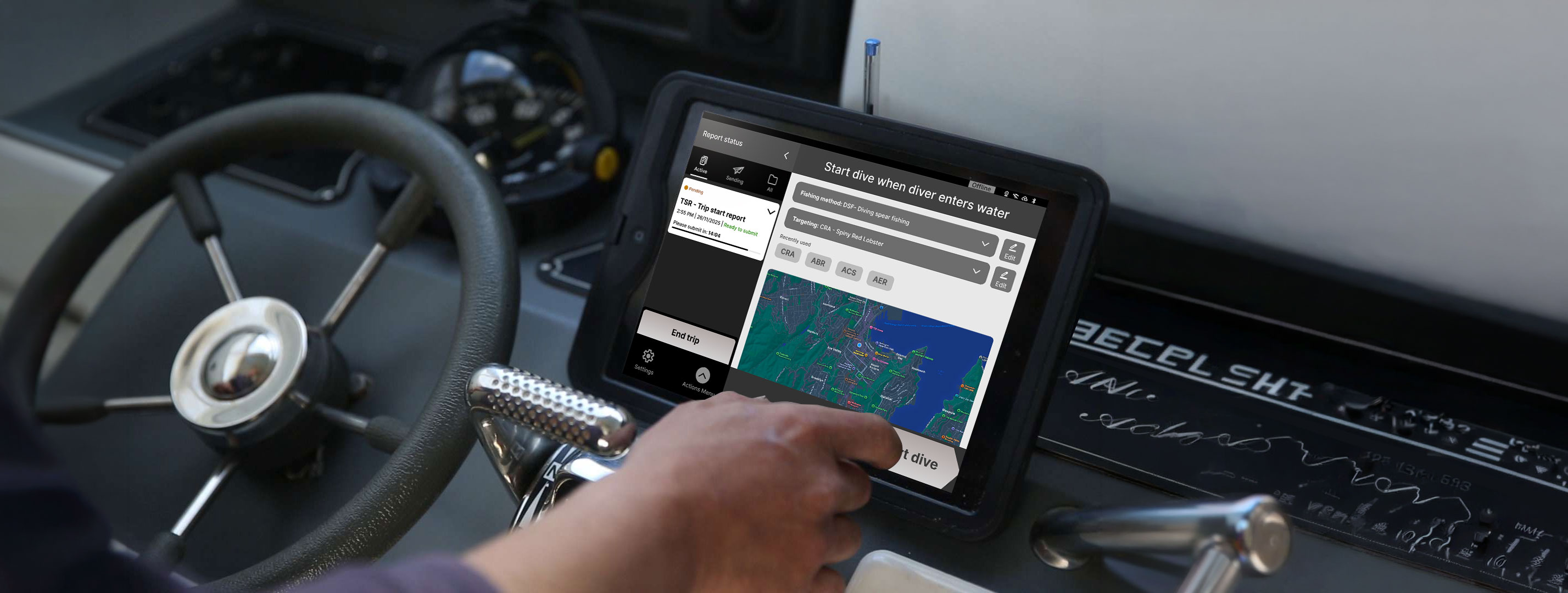
Product: Deckhand is an electronic logbook that allows fishermen to report catch, trip activities, and location data to the NZ government.
Challenge: To reduce the amount of support calls, then later expand into onboarding as a business opportunity.
My Role: I collaborated closely with the stakeholders and fishermen to define the problems in the flow and worked on the end to end design process.
Team & Timeline: 4 UX design students, 5 weeks
Problem
User Challenges
Users find the fishing reporting process complex, error-prone and difficult to recover from. So, there is a high reliance on customer support.
Business problem
This resulted in a high volume of support calls which increased operational costs and decreased overall customer satisfaction.
Data flow


Customer support team
Fishermen
Understanding the current experience
Current flow
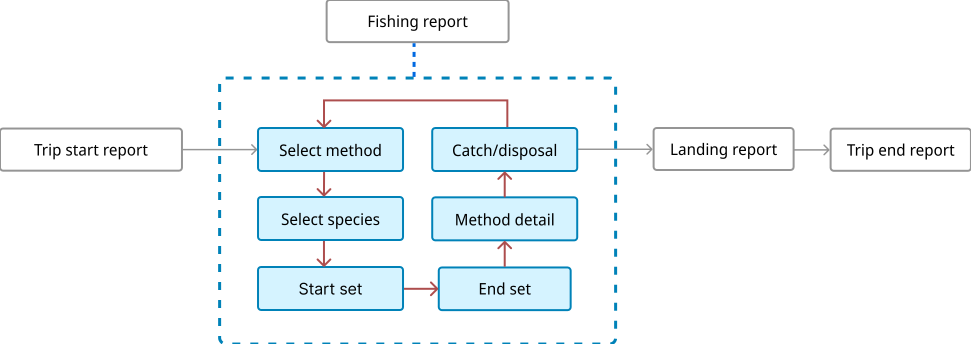
Lack of confirmation screen caused users to return to step one after submission making it unclear whether the report was complete.
Insights from primary research
Current state usability study
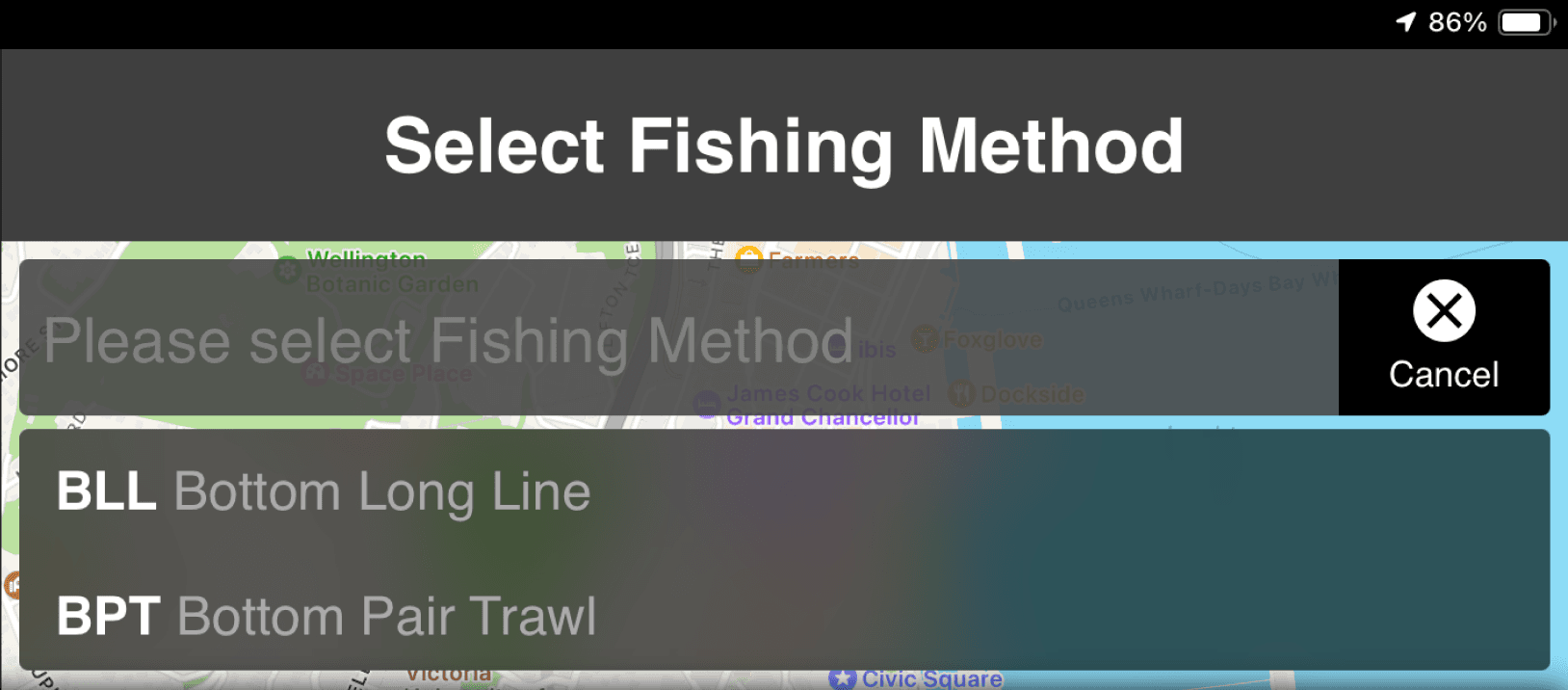
Usability study was conducted to understand the flow as well as the common problems when completing the report.
4
2
3
1
1
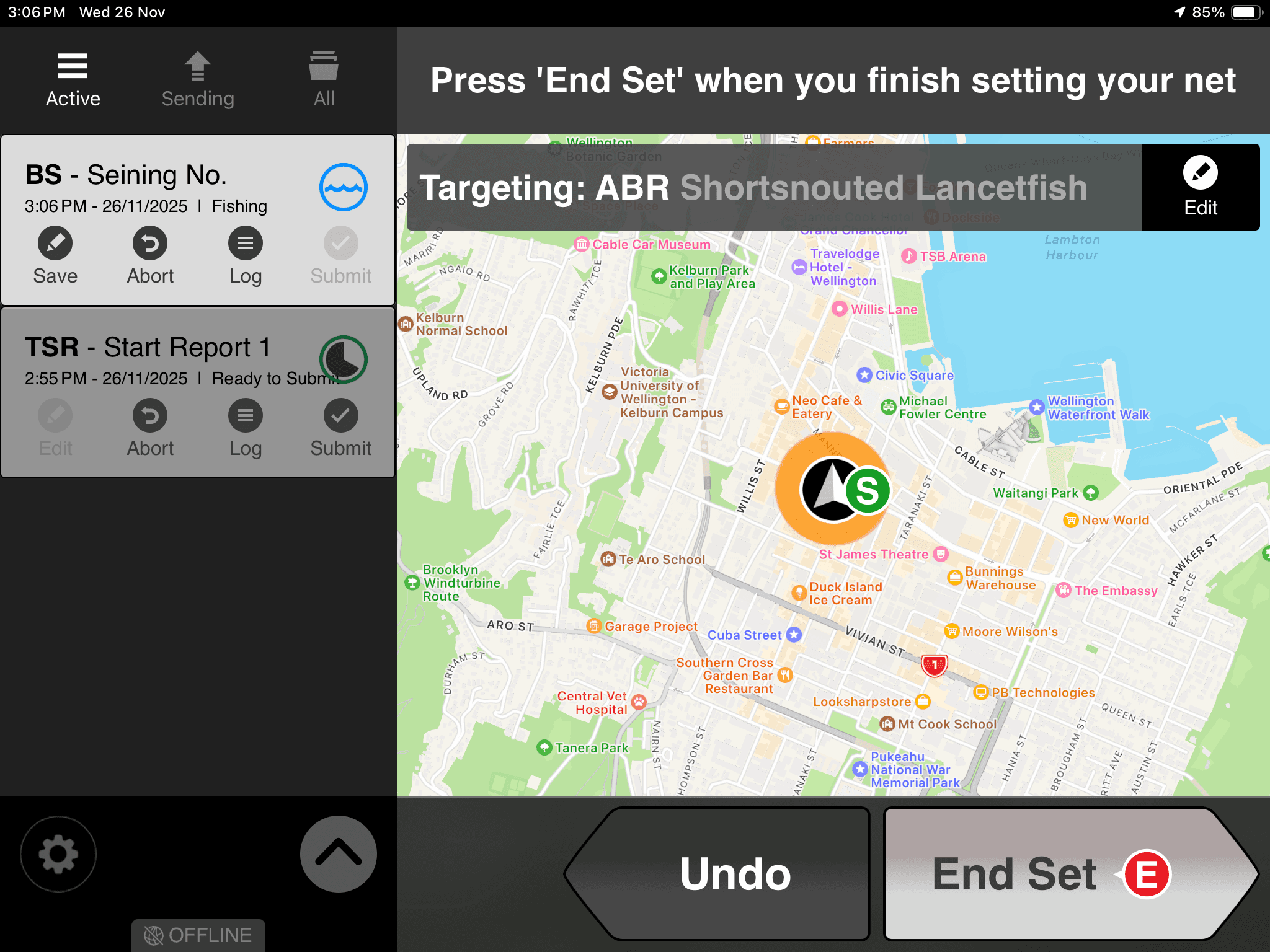
Users found it difficult to understand which report is active and what stage of completion they are in.
2
Users interpreted the ‘Active’ icon for hamburger menu.
3
Icons are used without supporting text, making them hard to interpret.
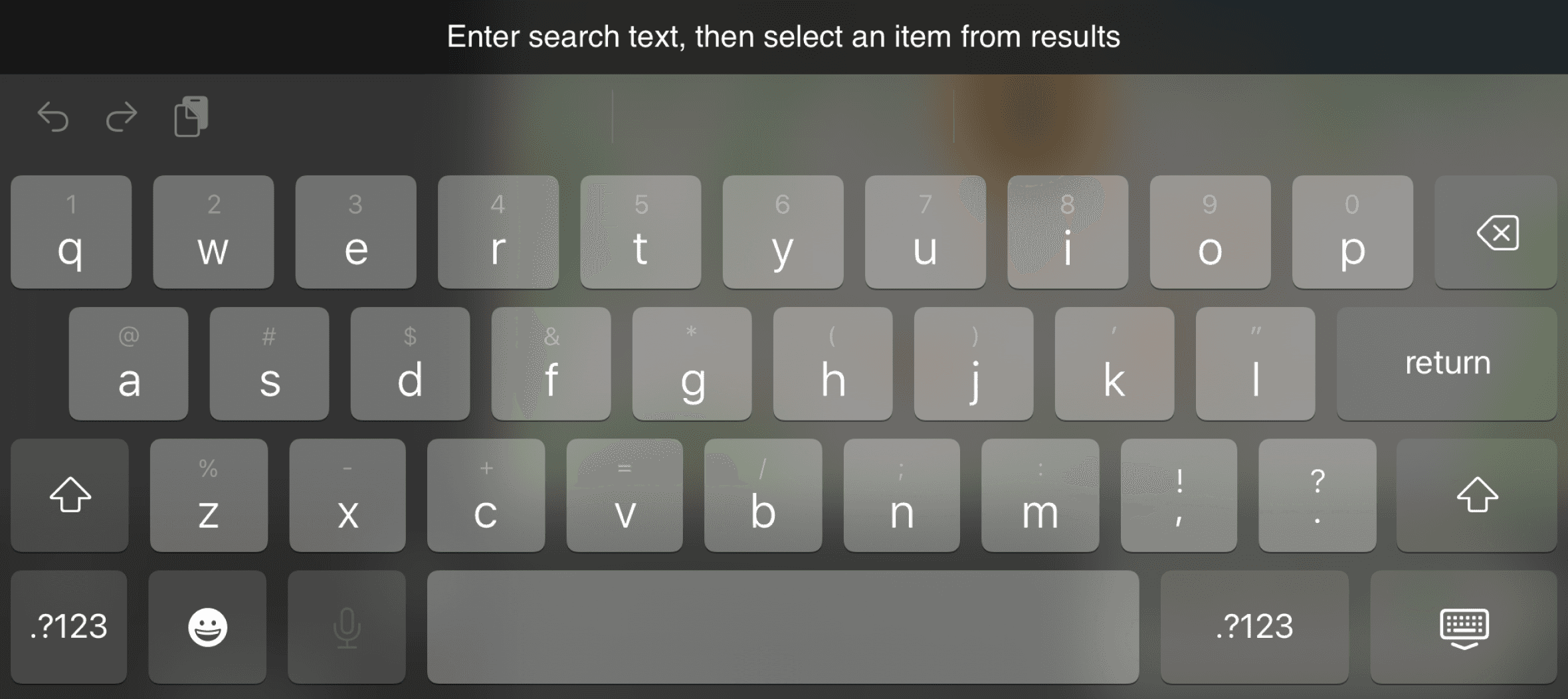
4
The scrolling area for the selection field was obstructed by the keyboard.
Key insights from interviews
Users: 5 fishermen, 2 customer support
Result
Customer service team provided us information with the recurring problems.
Fishermen helped us understand the real world issues at the sea.
Summary: Fishers struggled with hidden gestures, unclear user flows and unlabelled icons resulting in steep learning curve and limited error recovery methods when stuck.
Insight 4
The app uses icons without labels which makes it hard for users to communicate the symbols to the support team.
F11-s, F8-f, F16-s, F10-f, F5-f, F8-t
Insight 1
Due to lack of an onboarding process, the older fishermen found it difficult to transition from paper to e-logbooks.
F7-f, F8-f
Insight 4
The app uses icons without labels which makes it hard for users to communicate the symbols to the support team.
F11-s, F8-f, F16-s, F10-f, F5-f, F8-t
Insight 3
Common issues included internet failure, logbook renewal errors, and accidentally creating extra reports, highlighting the need for clearer error communication
F11, F8-f, F16, F5-f
*The alphabets and numbers indicates individual findings from users which helps to track exactly where the insight comes from.
Low-fi concepts
Along with finding solutions for the insights we focused on how users can complete the report faster by adding:
Recent selections for fishing methods
Saved addresses for landing.
App info and FAQs for troubleshooting or when reaching out to customer support.
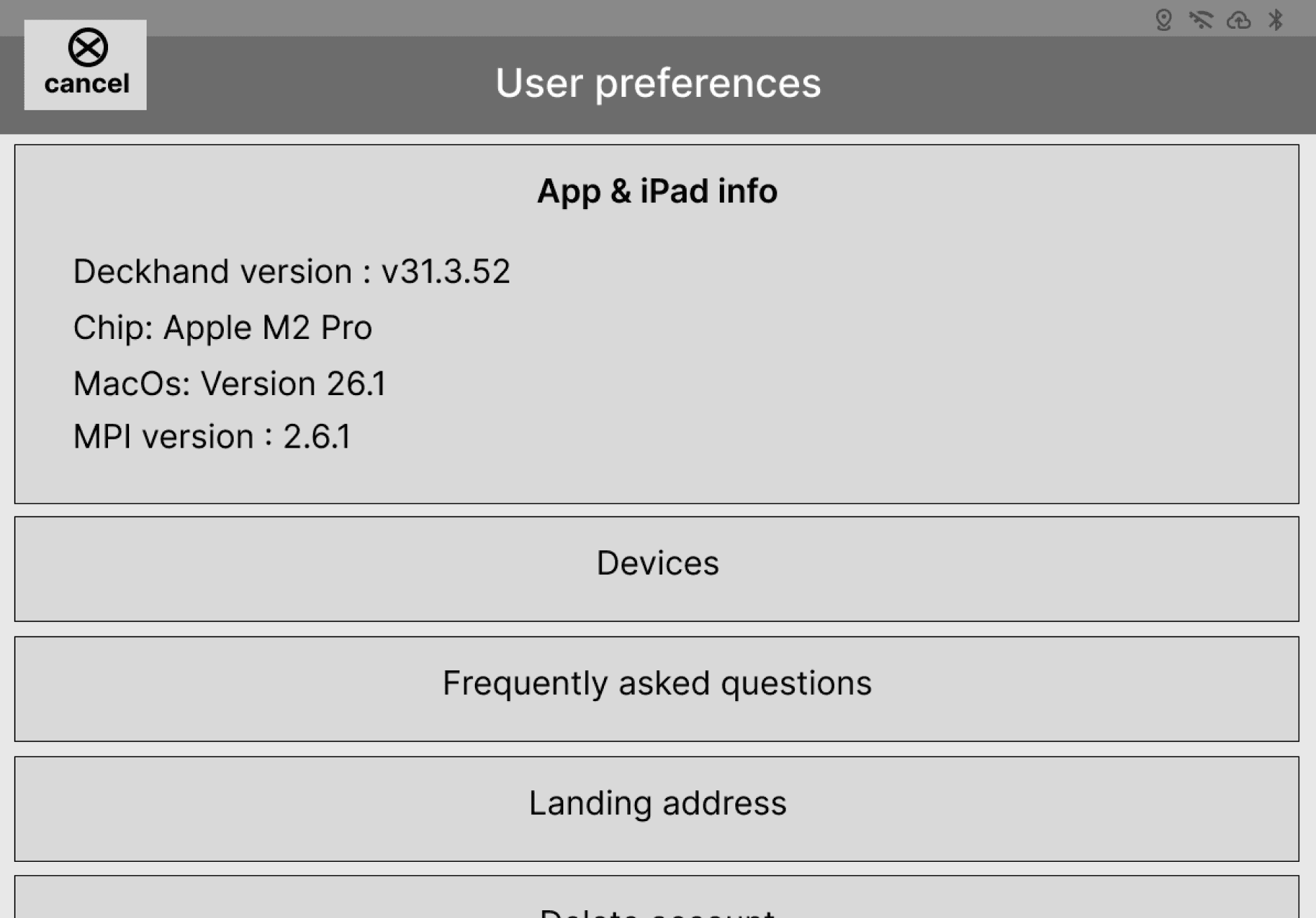
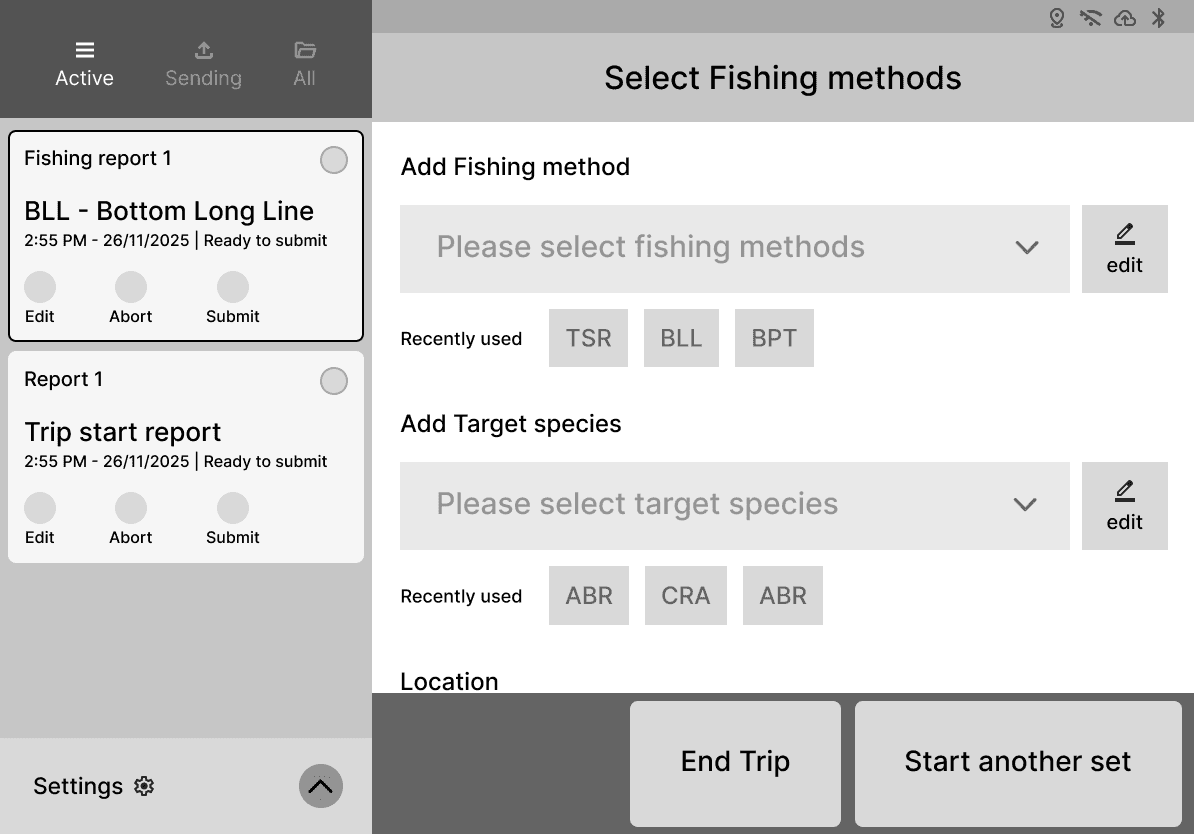
After performing a quick usability test with our low-fi concept we found:
Users couldn’t easily tell reports apart or track progress.
The circular timer confused users, with some mistaking it for a report progress indicator.
Comparative usability testing
Due to limited access to fishermen, we tested 3 concepts with 3 Dragonfly employees who where new to Deckhand. The testing focused on reporting panel, timer and report status.
Concept 1
The concept explored different ways to enter data, while accounting keyboard as a major constraint
Concept 2
This version focused primarily on redesigning the sidebar. This iteration also explored clearer UX writing for error messages, introduced success screens, and incorporated feedback mechanisms aimed at preventing errors.
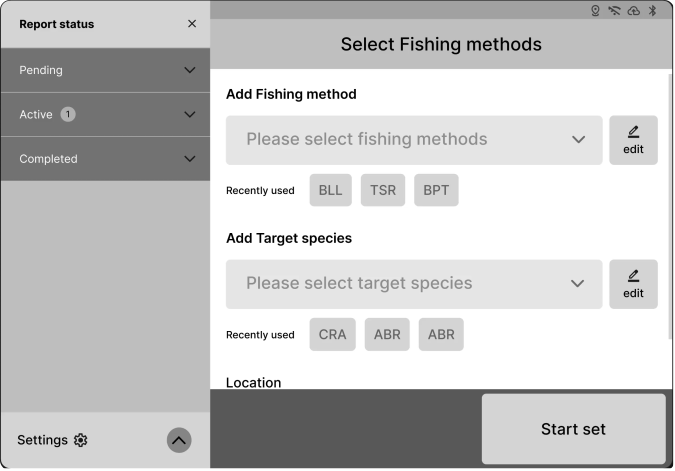
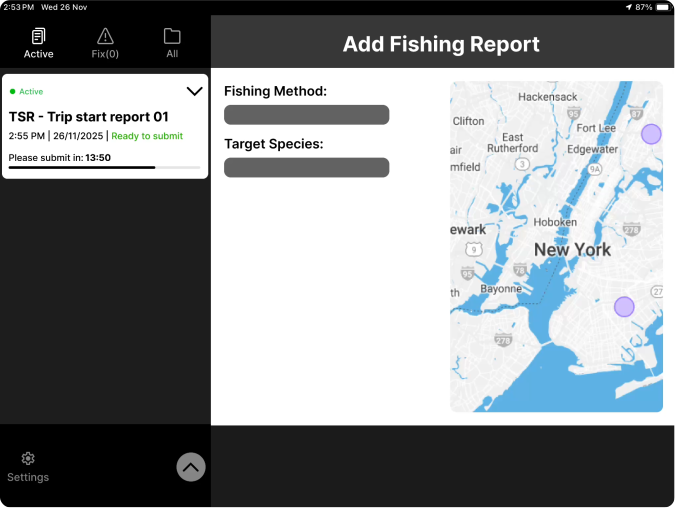
Concept 3: In the third version, we explored ways to display text fields within the dropdown menu and introduced a progress-bar-style timer to indicate the remaining submission time. We also tested different map placements and trip-end button locations. Additionally, we examined how the layout and interactions would behave when the report status has collapsed.
What we found?
Shortcuts and hint can efficiently improve the use experience, especially for some repeated tasks.
The position of the ‘End trip’ button need to be considered carefully as the button was hidden within the actions menu.
Keyboard was still a challenge with elements being hidden behind it.
Users could clearly understand the timer and its context along with which report is active from concept 3.
Change of project scope
Context for onboarding
eCatch is Deckhand’s major competitor, which relies on internet for report submission. With New Zealand transitioning from 3G to 4G networks in 2026, 4G network offers higher speeds, but its coverage in remote offshore fishing grounds is lower than 3G. This directly impacts eCatch users to submit report at sea.
Thus, creating an opportunity for Deckhand, which supports offline reporting. This way, Deckhand could grow a new customer base and revenue, which makes onboarding important to be included.
Goals
How might we provide a glimpse of how the reporting flow works to the users?
How might we support them if they are in crisis and don’t have access to internet or support team?
Idea 1: Our goal was to help users understand the system before they began reporting. Thus, preventing errors and providing clarification on what to expect at each step. The onboarding consisted of two parts, introduction to the reporting flow and progressive walkthrough of the interface.
Step 1
Start Trip Report
Enter trip details to begin reporting your fishing activity.
Next
Skip
Reporting in simple 4 steps
Introduction to reporting process
The reporting process was divided into 4 steps, each step supported by a video tutorial guiding users through report completion.
Report status
Active
Sending
All
Your reports will appear here once you get started
Settings
Actions menu


Go Fishing
Step 1
See which report you’re working on and what’s completed.
Skip
Next
Progressive onboarding
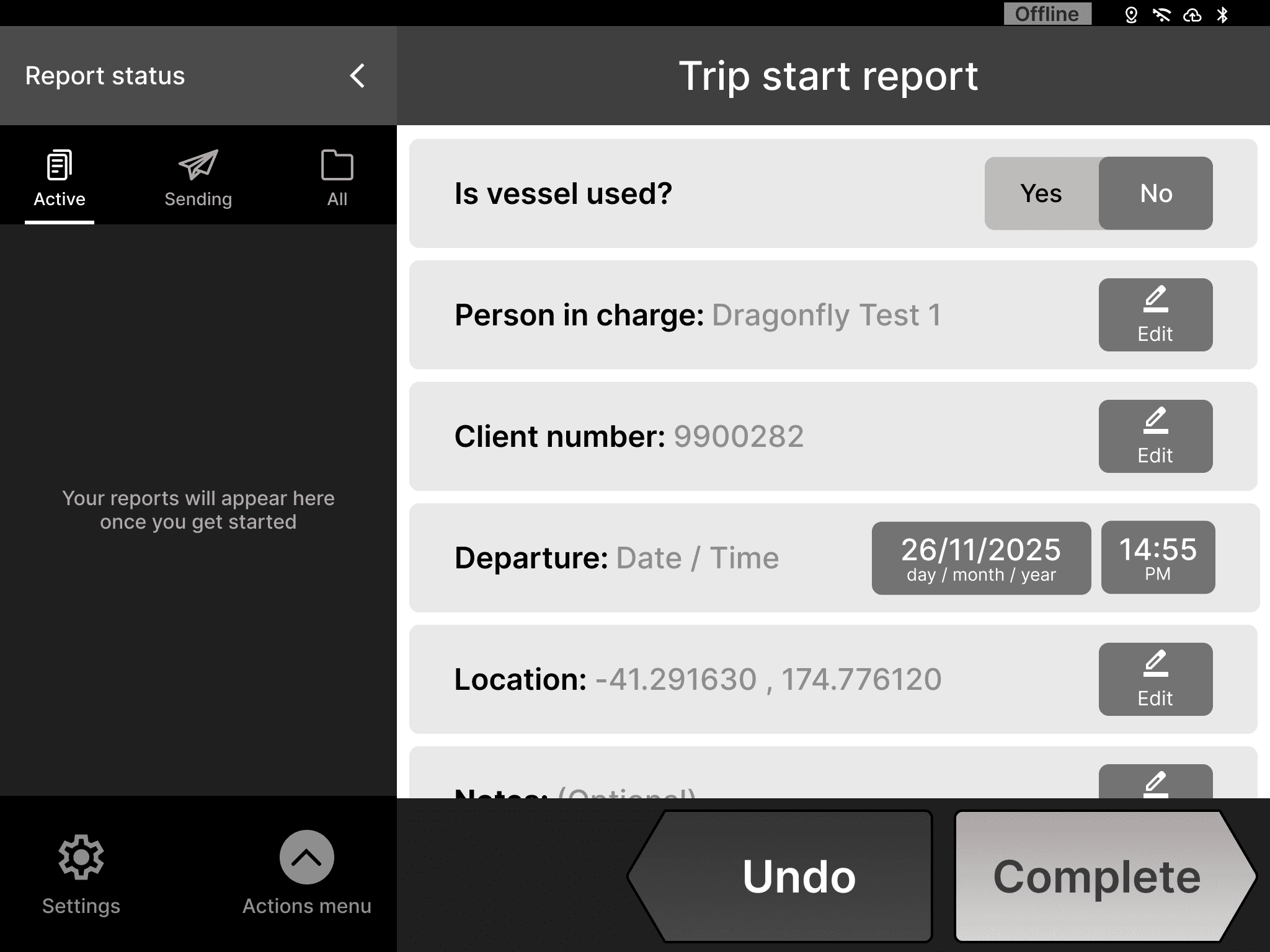
Users are taken through the UI elements in a progressive manner, helping them understand each element and its function.
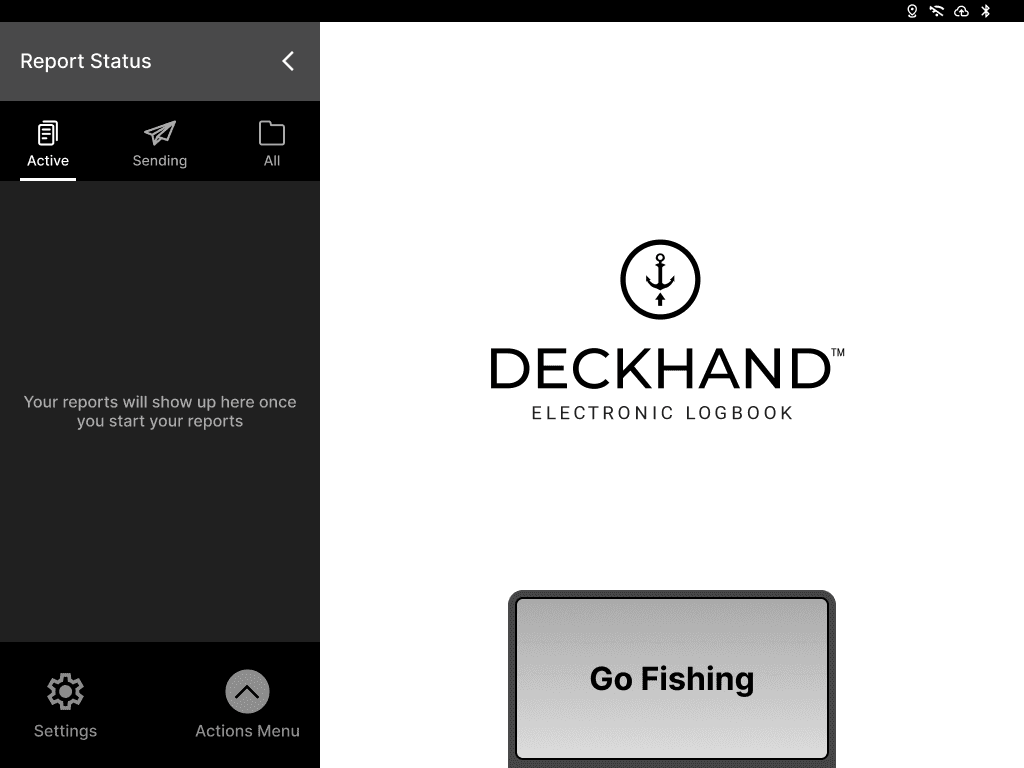
Idea 2: For users who are operating in challenging conditions at sea, where access to customer care is limited or unavailable. Our design proposes a handbook that provides a user guide for the entire reporting process, including common error states, and clear steps to follow when report is submitted with mistakes.
Step 1: Create start trip report
Step
Action
1
2
3
4
Click the “Go fishing” button
Enter your trip start report data on this page, click the “Edit” button if you want to make any changes
Once you finished, click the “Complete” button
Enter your passcode and click the “Submit” button
Note: Normally you do not need to edit the departure and location.
Note: If you do not know or forget your passcode, please phone call the customer support (+64 123456)
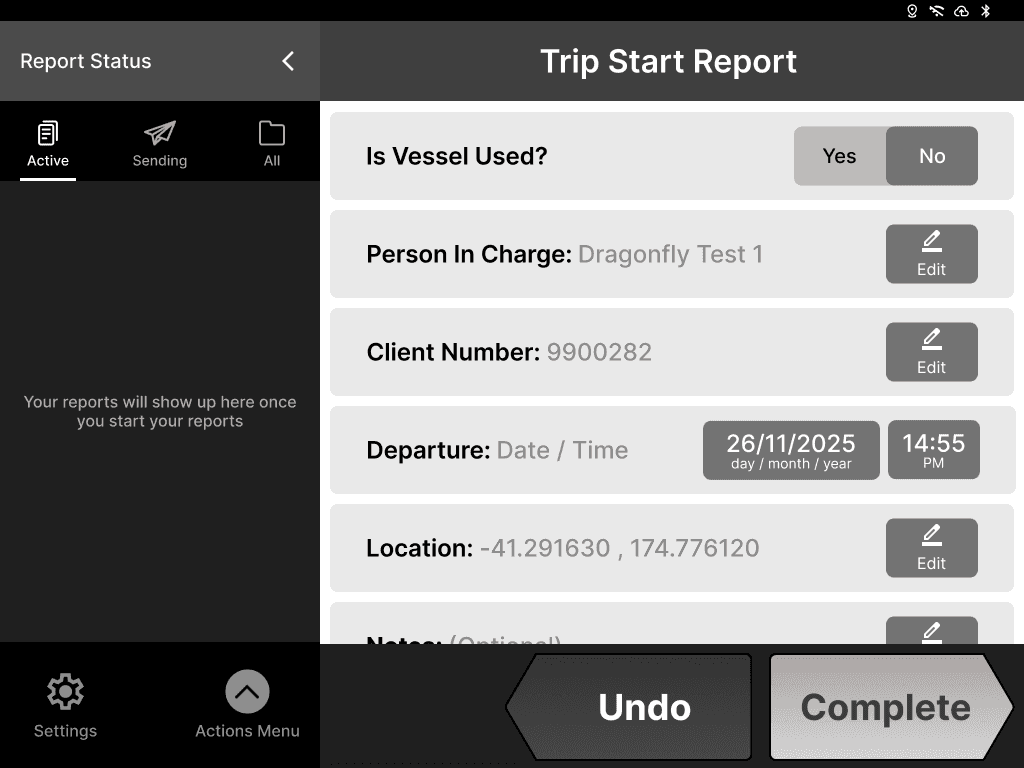

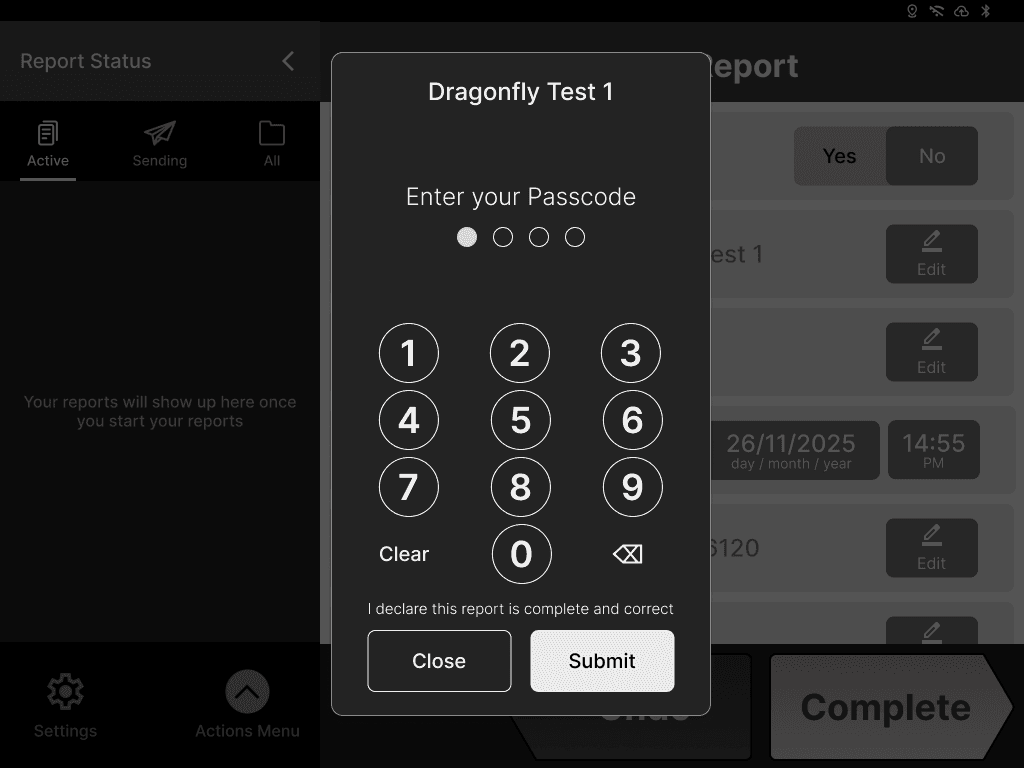
Please complete your start trip report at the beginning of a fishing trip, you may need the following informations when you are filling the report:
Vessel number (if vessel used)
Client number
Date, time, and initial position
Deckhand passcode
Mid-fi -Final concepts
Before
Offline
Report status
Active
Sending
All
Pending
TSR - Trip start report
2:55 PM | 26/11/2025 | Ready to submit
Please submit in:
14:04
Settings
Actions Menu
Select fishing method
Please select fishing method
Recently used
DSF
OCP
PS
PS
1
5
4
2
3
After
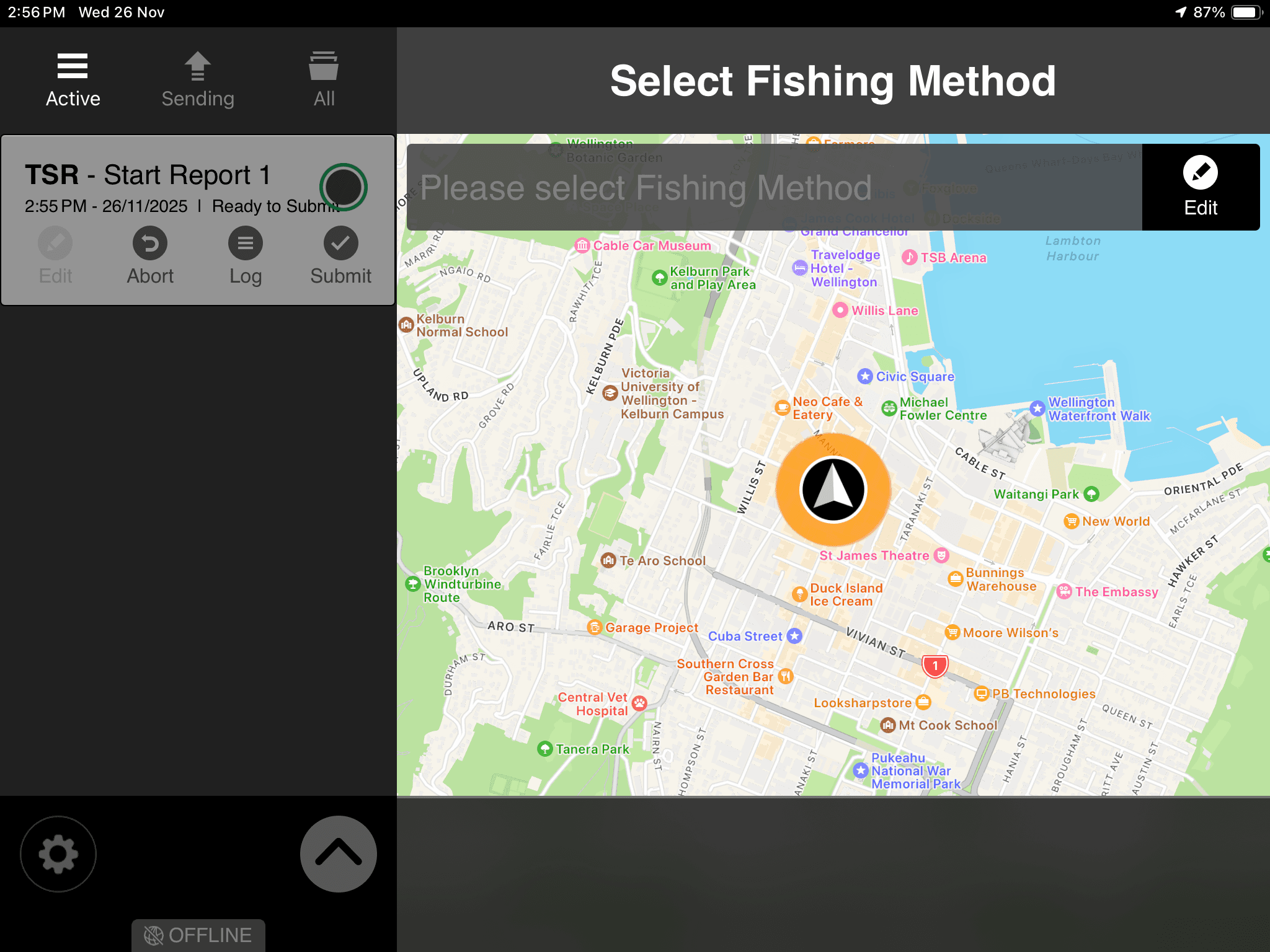
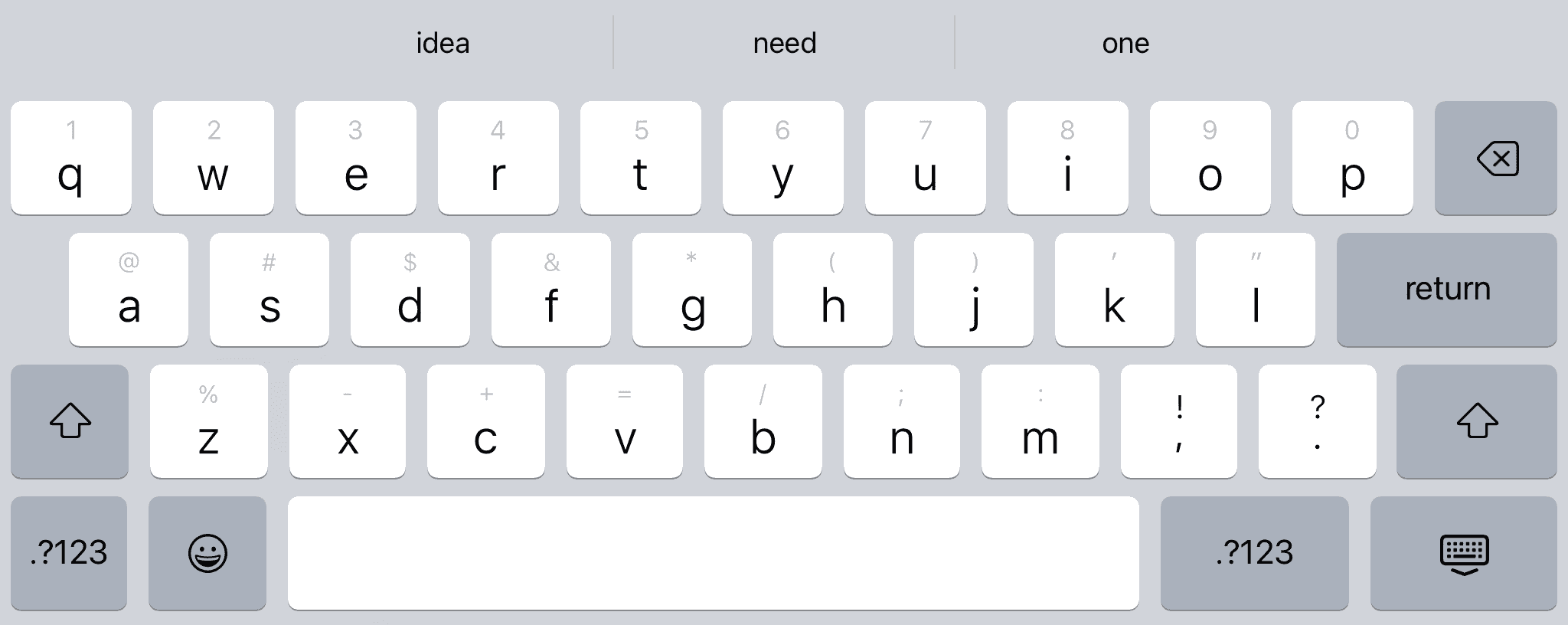
The reporting interface used for data entry and fishing method selection
In the updated version we:
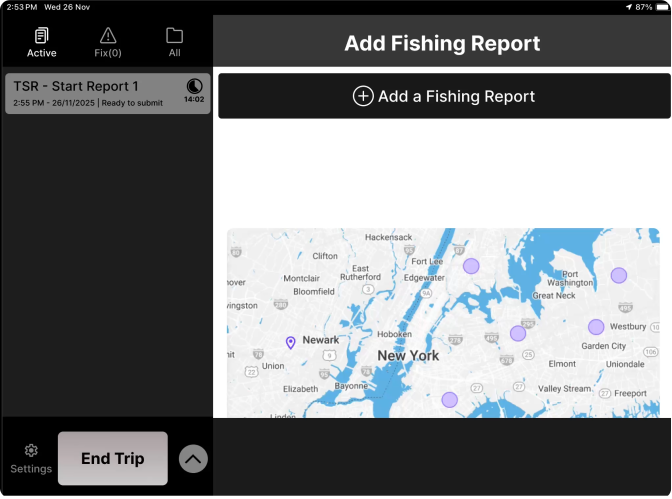
Added a heading for context and a collapsible report which provides user more space for data entry.
Redesigned the active report icon to prevent it from being mistaken for the hamburger menu.
Introduced a report status indicator and countdown timer to improve visibility of progress and remaining time.
Added a system status bar (location, Wi-Fi, Bluetooth) to support users and assist customer support with troubleshooting.
Improved data entry by hiding the keyboard on scroll to reveal more options, and added a “Recently used” section for faster selection.